
How Much Data Do You Need When Traveling? A Practical Guide for 2026
Most travelers need 3-5 GB of mobile data per week for typical usage including navigation, social media, messaging, and web browsing. Heavy users who stream video or work remotely should budget 10-20 GB weekly. Light users relying on Wi-Fi for most activities can manage with 1-2 GB.
Nothing ruins a trip faster than running out of data in an unfamiliar city. You are standing at a train station in Tokyo, trying to load your QR ticket, and your connection dies. Or you are navigating the winding streets of Barcelona, and Google Maps suddenly goes offline. These moments of connectivity panic are entirely preventable with proper data planning.
The real problem is not just running out of data—it is the confusion around how much you actually need. Mobile carriers push oversized packages with intimidating roaming fees. Travel blogs throw around vague estimates that do not match your actual usage. Meanwhile, you are left guessing between buying too little (and facing throttled speeds) or too much (and wasting money).
This guide eliminates that uncertainty. You will learn exactly how much data different activities consume, how to calculate your personal travel data budget, and practical strategies to stretch every megabyte without sacrificing your travel experience.
How Much Data Does the Average Traveler Use?
The average international traveler consumes 400-700 MB of mobile data per day, totaling 2.8-5 GB weekly. This covers essential activities: navigation, messaging, social media browsing, occasional video calls, and web searches. Business travelers and digital nomads typically use 1.5-3 GB daily due to video conferencing and cloud-based work tools.
Understanding baseline consumption helps you avoid the two most common mistakes: overbuying expensive unlimited plans you will never fully use, or underbuying and facing speed throttling when you need connectivity most.
Your actual usage depends on three factors: trip duration, daily online activities, and Wi-Fi availability at your accommodation. A weekend city breaker staying at a hotel with reliable Wi-Fi needs significantly less data than a two-week backpacker sleeping in remote hostels.
According to data from Statista’s global mobile data consumption research, average smartphone data usage has grown 20-25% annually since 2020. Travelers now expect the same connectivity abroad as at home, which drives higher data demand.
Daily Data Consumption by Traveler Profile
Traveler Type Daily Usage Weekly Usage Primary Activities Light User 200-400 MB 1.5-3 GB Maps, messaging, occasional social media Moderate User 500-800 MB 3.5-5.5 GB Navigation, social media, video calls, web browsing Heavy User 1.2-2.5 GB 8-17 GB Streaming, remote work, video uploads, hotspot sharing Digital Nomad 2-4 GB 14-28 GB Video conferencing, cloud sync, continuous connectivity
These figures assume you are using mobile data exclusively. If your hotel, cafes, or coworking spaces provide Wi-Fi, your actual mobile data needs drop by 40-60%.
Travel Data Consumption Breakdown by Activity
Navigation apps consume 2-10 MB per hour. Social media browsing uses 80-150 MB hourly, while video streaming dominates at 250 MB-1 GB per hour depending on quality. Messaging apps are lightweight at 1-5 MB hourly, and video calling ranges from 150-600 MB per hour based on platform and resolution.
Knowing these specific consumption rates lets you prioritize activities and make informed decisions about when to use mobile data versus waiting for Wi-Fi.
Navigation and Maps
Google Maps and Apple Maps are surprisingly data-efficient. Standard navigation with the screen on consumes approximately 2-5 MB per hour. Walking navigation with frequent screen checks increases this to 5-10 MB hourly. The real data saver is offline maps—download your destination before departure and use zero data for navigation.
For detailed guidance, see our article on how much data Google Maps uses and learn to maximize efficiency.
Social Media Usage
Social media platforms vary dramatically in data consumption:
-
Instagram: 150-300 MB per hour of scrolling (heavy on images and video)
-
TikTok: 400-800 MB per hour (video-heavy platform)
-
Facebook: 80-150 MB per hour (lower if primarily text browsing)
-
Twitter/X: 50-100 MB per hour (text-focused, efficient)
Uploading content consumes significantly more than browsing. A single 1080p video upload to Instagram can use 100-200 MB.
Video Streaming
Video is the fastest way to burn through your data allowance:
-
Netflix/YouTube (Low/SD): 250-400 MB per hour
-
YouTube (HD 720p): 600-900 MB per hour
-
Netflix (HD): 1-3 GB per hour
-
YouTube (4K): 7-15 GB per hour
Save video streaming for Wi-Fi connections. Download content before your trip while on home Wi-Fi for offline viewing during flights or commutes.
Messaging and Communication
WhatsApp and similar messaging apps are highly efficient. Text messages use negligible data (KBs). Voice calls consume 0.3-0.5 MB per minute. Video calls range from 3-8 MB per minute depending on quality. For a complete breakdown, read our guide on how much data WhatsApp uses.
Web Browsing and Email
General web browsing uses 50-100 MB per hour for text-heavy sites. Image-heavy websites or online shopping can reach 150-250 MB hourly. Email with attachments is the wildcard—10 photos from your camera roll can easily exceed 50 MB.
Data Needs by Travel Type and Duration
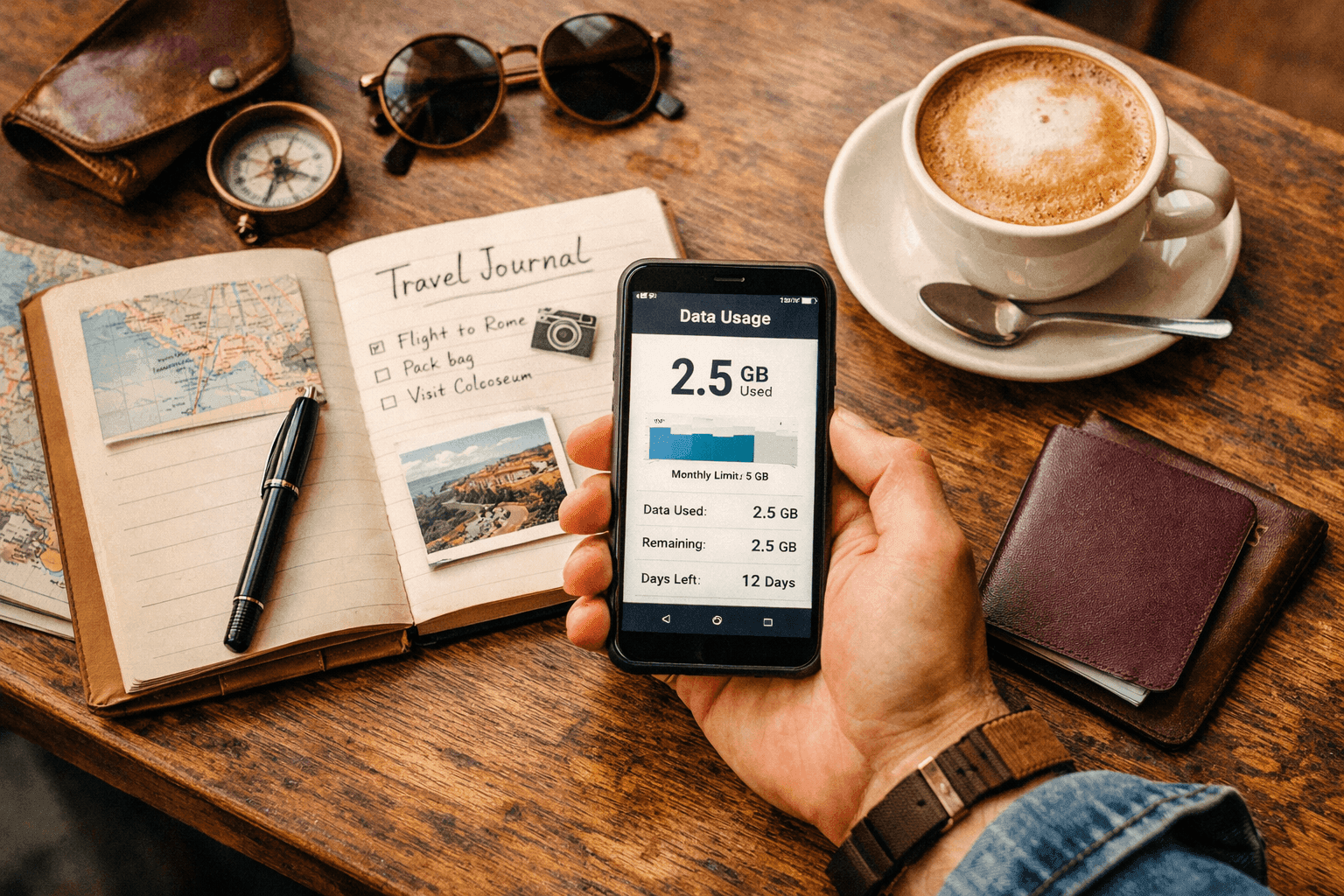
Weekend trips require 1-3 GB, one-week vacations need 3-7 GB, and extended travel or remote work demands 10-30 GB monthly. Business travelers should add 50% to standard estimates for email attachments, video calls, and document syncing.
Different travel styles have radically different connectivity requirements. Matching your data plan to your travel type prevents both shortages and waste.
City Breaks (2-4 Days)
Short urban trips with abundant Wi-Fi in hotels and cafes need minimal mobile data. Budget 500 MB to 1.5 GB total. You will primarily use data for navigation between attractions, quick social media posts, and messaging. If you are visiting somewhere with great connectivity infrastructure like Japan or Singapore, you will find Wi-Fi readily available.
Beach and Resort Vacations (1-2 Weeks)
Resort stays with poolside Wi-Fi allow lighter mobile data usage. Estimate 2-4 GB per week. You will use mobile data primarily during excursions, airport transfers, and evenings out. The exception is if you are streaming entertainment to poolside devices—in that case, budget 5-10 GB weekly.
Backpacking and Adventure Travel
Remote trekking and adventure travel often lack reliable Wi-Fi, increasing mobile dependence. Budget 5-8 GB weekly. You will rely heavily on offline maps (essential for areas with spotty coverage), translation apps, and emergency communication. Extended trips through regions like Southeast Asia may require multiple eSIM top-ups.
Business Travel
Business trips demand consistent, reliable connectivity. Budget 1-2 GB daily. Video conferencing (Zoom, Teams, Meet) consumes 500 MB-1.5 GB per hour. Add cloud document syncing, email attachments, and VPN usage, and your data needs triple compared to leisure travel.
Digital Nomad and Long-Term Travel
Remote workers need comprehensive connectivity. Monthly budgets range from 15-50 GB depending on work requirements. Video-heavy roles (content creation, frequent meetings) need more than text-based work (writing, coding, email). Consider local SIMs or longer-duration eSIM plans for cost efficiency on extended stays.
How to Calculate Your Personal Data Budget
Calculate your data budget by multiplying your daily activities by their hourly consumption rates, then summing the totals. Add a 20% buffer for unexpected usage. Example: Navigation (1 hour × 5 MB) + Social media (2 hours × 200 MB) + Messaging (all day × 10 MB) = 415 MB daily base, plus 83 MB buffer = ~500 MB per day.
Generic estimates fail because your usage pattern is unique. This formula creates a personalized data budget based on your actual behavior.
Step 1: Audit Your Current Usage
Before your trip, check your current monthly data consumption. On iPhone, go to Settings > Cellular > Current Period. On Android, check Settings > Network & Internet > Data Usage. Divide your monthly total by 30 for your daily average. This establishes your baseline home usage.
Step 2: Adjust for Travel Behavior
Travel typically increases data usage in some categories and decreases others:
-
Increases: Navigation (constant), photography uploads, translation apps, travel research
-
Decreases: Social media scrolling (you are experiencing, not posting), video streaming (less leisure screen time)
-
Wildcards: Video calls home, hotspot sharing with travel companions
Step 3: Factor in Wi-Fi Availability
Research your accommodation’s Wi-Fi quality through recent reviews. Reliable hotel Wi-Fi reduces mobile data needs by 40-60%. Hostels, budget hotels, and remote locations often have poor or no Wi-Fi, requiring full mobile dependence.
Step 4: Build Your Data Budget
Multiply your adjusted daily estimate by trip days, then add 20% for safety. For a 7-day trip with 600 MB daily usage: 600 MB × 7 = 4.2 GB, plus 840 MB buffer = 5 GB recommended data plan.
Proven Ways to Reduce Data Usage While Traveling
Reduce data consumption by downloading offline maps, enabling data saver modes, restricting background app refresh, using Lite versions of apps, and pre-downloading entertainment content. These strategies can cut usage by 50-70% without impacting your travel experience.
Download Content Before Departure
Load up on offline content while on home Wi-Fi:
-
Download Google Maps offline areas for your entire destination
-
Save Netflix shows and Spotify playlists for offline access
-
Download translation language packs in Google Translate
-
Save important documents, tickets, and confirmations to device storage
Enable Data Saver Features
Both iOS and Android include built-in data reduction tools. iPhone users can enable Low Data Mode (Settings > Cellular > Cellular Data Options). Android offers Data Saver mode (Settings > Network & Internet > Data Saver). These features restrict background app activity and reduce streaming quality.
Use Lite Apps and Mobile Websites
Many popular services offer lightweight alternatives:
-
Facebook Lite, Messenger Lite
-
Google Go
-
Instagram’s mobile website (vs. the app)
-
Text-based browsing via textise.net or similar services
Restrict Background App Refresh
Prevent apps from consuming data when not in active use. On iPhone: Settings > General > Background App Refresh. On Android: Settings > Apps > [App Name] > Mobile Data > Disable “Allow background data usage.” Restrict this for non-essential apps like social media, news, and games.
Optimize Photo and Video Sync
Cloud backup apps (Google Photos, iCloud) can consume massive data uploading vacation photos. Disable automatic sync over cellular. Wait for Wi-Fi to back up images, or manually select only essential photos for immediate backup.
If you are interested in minimizing costs while staying connected, you can try Yoho Mobile’s free eSIM to test these data-saving strategies before your main trip.
How to Monitor Your Data Usage in Real-Time
Monitor data usage through your phone’s built-in settings (iPhone: Settings > Cellular; Android: Settings > Network & Internet > Data Usage), your eSIM provider’s app, or third-party data monitoring apps like My Data Manager. Reset counters at trip start for accurate tracking.
Built-In Phone Tools
iPhone users can view cellular usage by app and reset statistics for trip-specific tracking. Android provides similar granularity with the ability to set data warnings and limits. These native tools are free and require no additional installation.
eSIM Provider Dashboards
Most eSIM providers, including Yoho Mobile, offer real-time usage tracking through their apps or websites. These dashboards show remaining data, expiration dates, and sometimes per-app consumption. This is the most accurate method since it reflects your actual plan usage rather than device estimates.
Third-Party Monitoring Apps
Apps like My Data Manager, Data Usage, and GlassWire provide enhanced tracking with alerts, historical data, and predictive analysis. They are particularly useful for multi-SIM setups or travelers switching between multiple eSIM profiles.
Why eSIMs Make Data Planning Easier
eSIMs simplify data planning through instant activation, flexible plan sizes (1 GB to unlimited), easy top-ups without physical SIM swaps, and the ability to store multiple profiles. You can purchase exactly the data amount calculated by your budget formula, then add more if needed.
Traditional physical SIM cards lock you into predetermined package sizes at airport kiosks or convenience stores. If you run low, finding a top-up location and navigating foreign language interfaces creates friction.
An eSIM (embedded SIM) eliminates these constraints. Purchase and activate your plan before departure or upon arrival through an app. Monitor usage in real-time. Top up instantly if running low. Store multiple country profiles for multi-destination trips.
This flexibility is particularly valuable for uncertain travel situations. Not sure if you need 5 GB or 10 GB? Start conservatively and add data if needed. Traveling to multiple countries? Maintain separate profiles for each destination without fumbling with physical cards.
For travelers visiting destinations across Asia, our guide to the best eSIM for Asia covers regional options. If the United States is your destination, see our best eSIM for the US recommendations.
The benefits of eSIM extend beyond convenience to include environmental impact (no plastic cards), security (no physical SIM to lose or steal), and cost transparency (no surprise roaming bills).
What Happens When You Run Out of Data?
When you exhaust your data allowance, most eSIM providers throttle speeds to 128-256 Kbps (suitable for messaging and email only) or cut off data entirely. Some providers offer automatic top-ups or pay-as-you-go overage rates. Always understand your provider’s specific policy before purchase.
Throttling vs. Cutoff
Providers handle data exhaustion differently:
-
Throttling: Reduces speed to near-unusable levels (128-256 Kbps) but maintains basic connectivity. Maps may not load. Videos are impossible. Messaging works slowly.
-
Hard cutoff: Data stops entirely until you purchase additional allowance or wait for plan renewal.
-
Overage charges: Some providers automatically bill for additional data at premium rates. Avoid these plans unless you fully understand the pricing.
Emergency Data Recovery
If you run out of data unexpectedly:
-
Connect to any available Wi-Fi (cafes, hotels, public hotspots) to purchase a top-up
-
Use your provider’s app or website to add data instantly
-
Consider switching to a backup eSIM profile if you have multiple installed
-
In emergencies, most carriers allow limited-speed connectivity for essential services even after data exhaustion
Preventing Data Exhaustion
The best strategy is proactive monitoring. Check usage every 2-3 days against your budget. If you are consuming faster than planned, immediately implement data-saving measures or purchase a top-up before speeds throttle at a critical moment.
Before your trip, familiarize yourself with your provider’s top-up process. Test purchasing additional data so you know the exact steps before you are stranded without connectivity. You can also experience Yoho Mobile’s eSIM service to understand how easy top-ups work in practice.
Frequently Asked Questions
How much data does Google Maps use per hour?
Google Maps uses approximately 2-5 MB of data per hour for standard navigation with the screen on. Offline maps use zero data after initial download. In walking mode with frequent screen checks, expect 5-10 MB per hour.
Is 5GB enough for a week-long trip?
Yes, 5GB is sufficient for a week-long trip for most travelers. This covers daily navigation, social media posting, messaging, and moderate web browsing. Avoid video streaming or download content on Wi-Fi to stay within this budget.
How can I check my data usage on iPhone?
Go to Settings > Cellular or Settings > Mobile Data. Scroll down to see data usage by app. Reset statistics at the start of your trip by scrolling to the bottom and tapping “Reset Statistics” to track usage accurately.
Does hotspot use more data than regular usage?
The data consumption itself is identical—sharing your connection doesn’t inflate usage. However, laptops and tablets often consume more data than phones due to background updates and higher-resolution content loading, so monitor connected devices.
How much data does WhatsApp calling use?
WhatsApp voice calls use approximately 0.3-0.5 MB per minute (18-30 MB per hour). Video calls consume 3-5 MB per minute (180-300 MB per hour). Audio messages use about 1 MB per minute of recording.
Can I use eSIM and physical SIM at the same time?
Yes, dual-SIM phones allow simultaneous use of eSIM and physical SIM. You can assign different functions to each—typically using eSIM for local data while keeping your physical SIM active for calls and texts from home.