
How to Set Up eSIM on Samsung Z Trifold | Yoho Mobile Guide
Unboxing a new Samsung Galaxy Z Trifold is an exciting experience. This powerful, cutting-edge device deserves equally powerful and flexible connectivity. It’s time to ditch the tiny physical SIM trays and embrace the future with a Yoho Mobile eSIM. Get connected in minutes, anywhere in the world, without fumbling with plastic cards.
Before you even pack your bags, explore flexible data plans for your next trip and see how easy it is to stay connected.
Picture by BoliviaInteligente on Unsplash
Why an eSIM is the Perfect Match for Your Galaxy Z Trifold
Your Z Trifold is all about innovative technology, and so is the eSIM. An eSIM (or embedded SIM) is a digital SIM card that allows you to activate a cellular plan from a carrier without having to use a physical SIM card. It unlocks powerful features like Dual SIM capability, letting you use two numbers on one device—perfect for separating work and personal life or using an affordable local data plan while traveling.
With a Yoho Mobile eSIM, you can say goodbye to expensive roaming charges and the hassle of hunting for local SIM cards upon arrival. You can purchase and activate your plan from the comfort of your home. This is especially useful for a multi-country trip, for example, across Europe. Just one Europe-wide eSIM data plan can cover you seamlessly from Paris to Rome.
Pre-Setup Checklist: What You Need
Before you begin, make sure you have the following ready to ensure a smooth setup process:
- A Compatible, Unlocked Phone: Your Samsung Galaxy Z Trifold is fully eSIM compatible. To be sure your specific model is supported, you can always double-check our complete eSIM compatible device list. The phone must also be carrier-unlocked, meaning it’s not tied to a single mobile provider.
- A Stable Internet Connection: You’ll need a Wi-Fi connection to download and install your eSIM profile onto your device.
- Your Yoho Mobile QR Code: After purchasing a plan, you’ll receive a confirmation email containing a QR code for activation.
Step-by-Step: How to Activate Your eSIM on the Samsung Z Trifold
Activating your Yoho Mobile eSIM is quick and easy. Just follow these steps:
-
Purchase Your Plan: If you haven’t already, head to the Yoho Mobile website and choose a data plan that fits your travel needs. Once your purchase is complete, you’ll receive the confirmation email.
-
Find Your QR Code: Open the confirmation email from Yoho Mobile. It’s best to display this email on a separate device like a laptop, tablet, or another phone so your Z Trifold can scan the QR code.
-
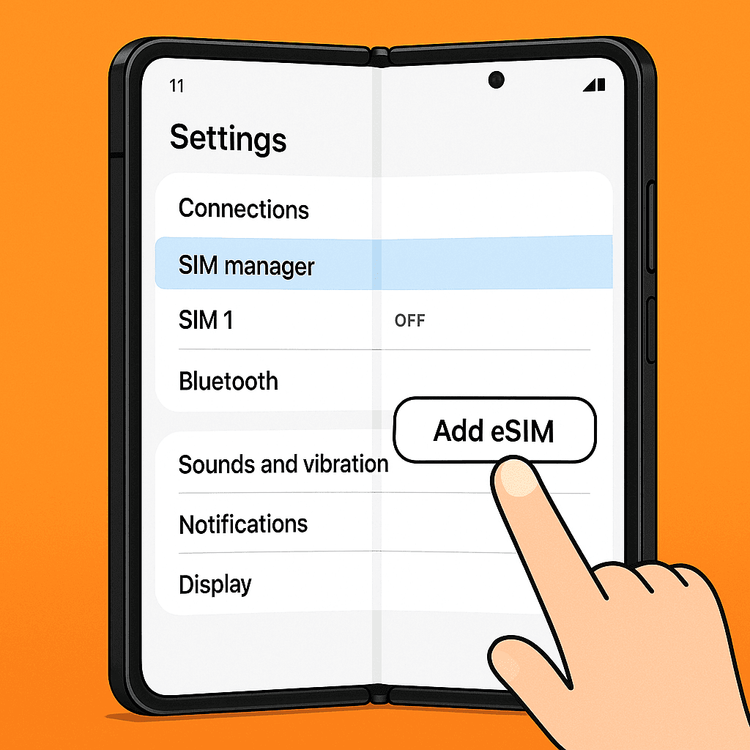
Navigate to SIM Manager: On your Z Trifold, open the Settings app, then tap on Connections, and finally select SIM manager.
-
Add an eSIM: In the SIM manager menu, tap on + Add eSIM.
-
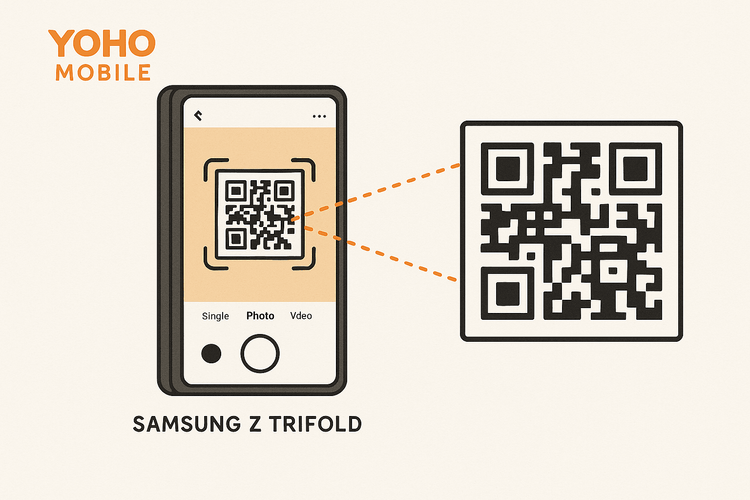
Scan the QR Code: Your phone will ask how you want to add the eSIM. Choose the option that says Scan QR code from service provider.
-
Point and Scan: Use your Z Trifold’s camera to scan the QR code displayed on your other screen. If for any reason you can’t scan it, you can select ‘Enter activation code’ and manually input the details provided in your email. For more details on manual installation, you can visit our support page.
-
Confirm and Add: Your phone will detect the Yoho Mobile plan. Follow the on-screen prompts to add it to your device. The process usually takes less than a minute.
-
Label Your New eSIM: Once added, Android allows you to name your eSIMs. We recommend labeling it “Yoho Travel” or something similar to easily distinguish it from your primary physical SIM.
-
Set Data Preferences: Back in the SIM manager, you can now choose your preferred SIM for Calls, Messages, and Mobile Data. Set Mobile Data to your new Yoho Mobile eSIM to start using your data plan and avoid roaming charges on your primary line.
Master Your Dual SIM Settings
The true power of an eSIM on your Z Trifold is its Dual SIM functionality. You can keep your primary number active for receiving calls and important texts (like two-factor authentication codes from your bank) while using your Yoho Mobile eSIM for affordable, high-speed data. This flexibility is a game-changer for international travelers, digital nomads, and business professionals. According to the GSMA, the organization that sets eSIM standards, this technology is designed for exactly this kind of global convenience.
Plus, with Yoho Care, you’re protected from unexpected connection drops, ensuring you’re always online when it matters most, even if you use up your data allowance.
What If You Run Out of Data?
Don’t worry! Running out of data mid-trip doesn’t mean you’re disconnected. You can easily top up your data by purchasing a new plan through your Yoho Mobile account. We’ve designed our service to be transparent and user-friendly, with no hidden fees or confusing auto-renewals. You are always in control of what you spend. For more information, check out official Android guides on managing dual SIMs.
Frequently Asked Questions (FAQ)
How long does it take to activate an eSIM on a Samsung Z Trifold?
Activation is nearly instant. Once you scan the QR code with a stable Wi-Fi connection, the Yoho Mobile plan should be added to your device and ready to use in under a minute.
Can I use my physical SIM and an eSIM at the same time on the Galaxy Z Trifold?
Yes! The Samsung Z Trifold’s dual SIM capability is a key feature. It fully supports using a physical SIM and an eSIM simultaneously. You can easily select which line to use for calls, texts, and mobile data in your phone’s settings.
What should I do if the eSIM QR code is not working on my Samsung Z Trifold?
First, ensure your camera lens is clean and there’s adequate lighting. If it still fails, you can use the manual activation method. The required details, like the SM-DP+ Address and Activation Code, are included in your confirmation email. If you still face issues, our support team is always ready to help.
Do I need to remove my physical SIM to use a Yoho Mobile eSIM?
No, you do not need to remove your physical SIM. The eSIM functions as a second, digital SIM line, which works alongside your primary card to give you dual SIM capabilities.
Conclusion
Your Samsung Galaxy Z Trifold is built for the future, and so is your connectivity with Yoho Mobile. By following this simple guide, you can unlock seamless, affordable, and flexible global internet in just a few minutes. Stop worrying about roaming fees and start enjoying your travels with the confidence that you’re always connected.
Ready to get started? Get a free trial eSIM to test our service or browse our global data plans and connect today!