
Fix: 'Cellular Plan Cannot Be Added' eSIM Error on iPhone
There’s nothing more frustrating than trying to set up your new eSIM, only to be stopped by the dreaded “Cellular Plan Cannot Be Added” error. You’re ready to get connected, but your iPhone has other plans. Don’t worry—this is a common issue with several straightforward solutions.
This guide will walk you through the most frequent causes of this eSIM activation error and provide clear, step-by-step instructions to get you online. Before you start, it’s good to know that with a compatible device and a reliable provider, the process is usually a breeze. In fact, you can even try a free eSIM from Yoho Mobile to test your device before you travel.
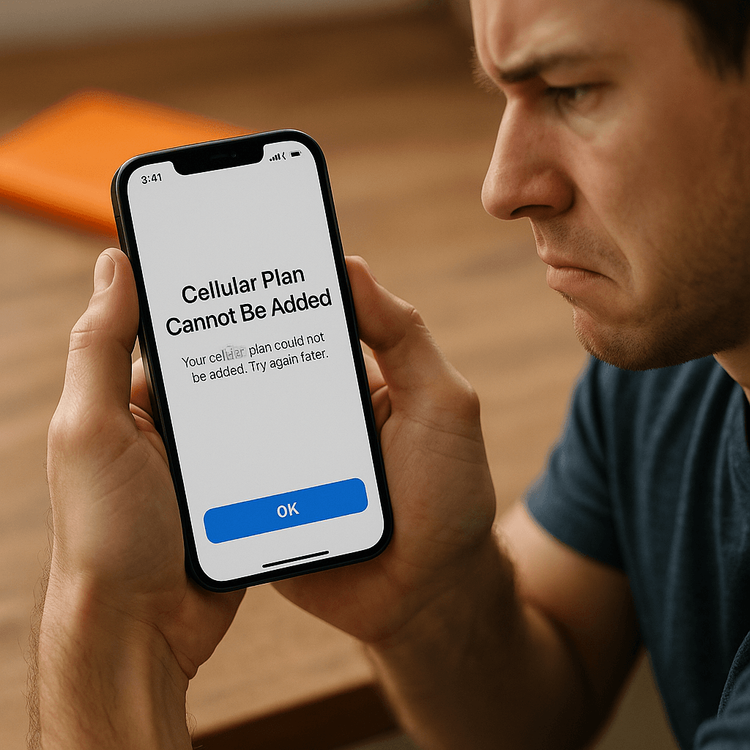
Why You’re Seeing the ‘Cellular Plan Cannot Be Added’ Error
This error message can pop up for a few key reasons. Understanding the cause is the first step to finding the right fix.
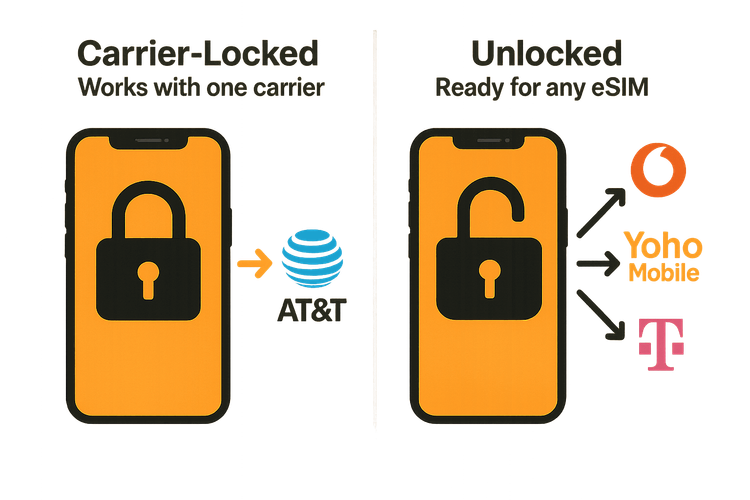
The #1 Culprit: Your Device is Carrier-Locked
By far, the most common reason for this error is that your phone is “carrier-locked.” This means your device is restricted to working only with the mobile carrier from which you originally purchased it. If you try to install an eSIM from a different provider, like Yoho Mobile, your phone’s software will block it.
Other Common Causes
- Invalid or Expired QR Code: eSIM QR codes are often for one-time use and can expire. If you’re trying to reuse an old code or it has timed out, the activation will fail. Note that with Yoho Mobile on iOS, you don’t even need a QR code—just tap ‘Install’ in our app for a seamless setup!
- Outdated iOS: Software bugs in older versions of iOS can sometimes interfere with eSIM activation. Keeping your device updated is crucial for performance and security.
- Poor Internet Connection: Your iPhone needs a stable Wi-Fi or cellular data connection to download and verify the eSIM profile from the carrier’s servers.
- Existing Plan Restrictions: In rare cases, some primary carriers have restrictions that prevent adding a second plan. This is less common with travel eSIMs.
Step-by-Step Solutions to Fix the eSIM Activation Error
Let’s work through the solutions, starting with the most likely fix.
Step 1: Check if Your Device is Unlocked
Before anything else, confirm your phone’s lock status. This simple check can save you hours of frustration.
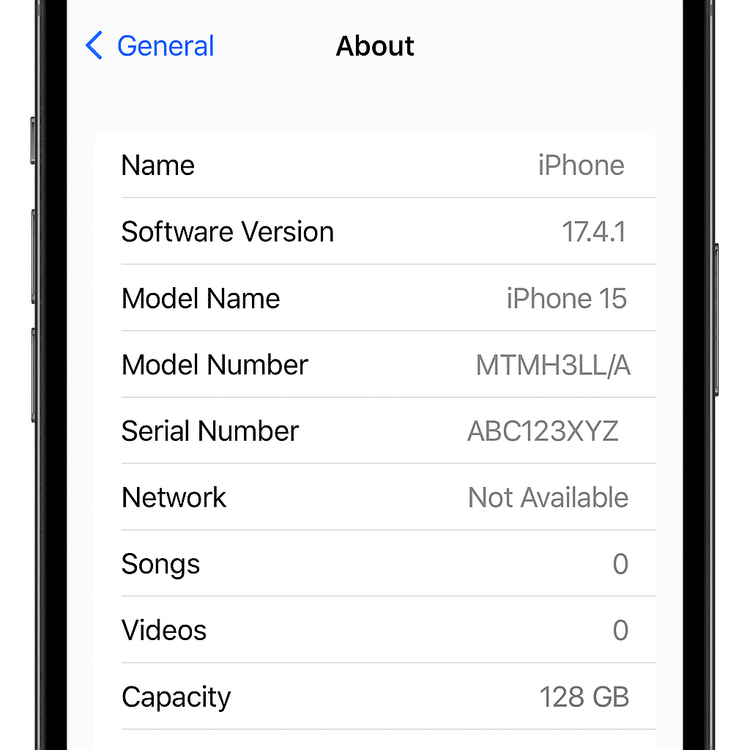
- Go to Settings > General > About.
- Scroll down to the Carrier Lock section.
- If it says “No SIM restrictions,” your phone is unlocked and ready for any eSIM. You can proceed to the next steps.
- If it shows a carrier name, your phone is locked. You’ll need to contact that carrier to request they unlock it. For more details, see our guide on how to check if your phone is carrier-locked for eSIM.
Step 2: Ensure Your Phone is eSIM-Compatible
While most newer phones support eSIM, it’s always good to double-check. You can find a comprehensive eSIM compatible device list on our website to confirm your model is supported.
Step 3: Verify Your Internet Connection
Make sure you’re connected to a stable Wi-Fi network. Try toggling Wi-Fi off and on, or connect to a different network if possible, before attempting the eSIM installation again.
Step 4: Update Your Device’s Operating System
An outdated OS can cause unexpected glitches. To update:
- Go to Settings > General > Software Update.
- If an update is available, download and install it.
Step 5: Try a Manual Installation
If the QR code isn’t working, manual installation is a great alternative:
- Go to Settings > Cellular > Add eSIM.
- Tap “Enter Details Manually” at the bottom of the screen.
- You’ll be provided with an SM-DP+ Address and Activation Code from your eSIM provider. Enter these details carefully.
Remember, for a truly hassle-free experience on iOS, Yoho Mobile’s app lets you install your eSIM with a single tap—no codes or scanning required.
Still Stuck? How Yoho Mobile Makes it Easier
We believe getting connected should be simple. If you’re still facing issues, our support team is ready to help. Furthermore, Yoho Mobile is designed to prevent connectivity headaches.
With our innovative Yoho Care service, you’re protected from sudden data loss. Even if your plan runs out unexpectedly, we ensure you have a backup connection to stay online. Learn more about the peace of mind Yoho Care provides.
Ready to solve your connectivity issues for good? Explore our flexible eSIM plans for over 200 countries and regions and enjoy a truly seamless travel experience.
Frequently Asked Questions (FAQ)
What does it mean if my cellular plan cannot be added because my device is carrier-locked?
This means your phone is restricted by the original carrier and cannot accept SIMs or eSIMs from other providers. You must contact the original carrier and ask them to unlock your device before you can install a new eSIM.
Can I use an eSIM if the QR code is not valid?
No, an invalid or expired QR code will not work. You should request a new QR code from your provider or try the manual installation method if they provide the necessary details. With Yoho Mobile for iOS, you can bypass this step entirely with our in-app installation.
My iPhone eSIM is not working after an iOS update, what should I do?
First, restart your phone. If that doesn’t work, try removing the eSIM profile (Settings > Cellular > Select the eSIM > Remove Cellular Plan) and then reinstalling it. Make sure you have the installation details handy before removing it.
Do I need to remove my physical SIM to fix the ‘cellular plan cannot be added’ error?
No, you do not need to remove your physical SIM card. The error is related to your device’s software restrictions or the eSIM profile itself, not the physical SIM. iPhones with dual SIM functionality are designed to have both active simultaneously.
Conclusion
The “Cellular Plan Cannot Be Added” error is usually a roadblock, not a dead end. By systematically checking your device’s lock status, compatibility, and internet connection, you can solve the problem in most cases. The number one cause is a carrier-locked phone, so verifying that first will save you the most time.
For a travel experience free from these activation woes, choose a provider built for simplicity and reliability. Check out Yoho Mobile’s eSIM plans today and get connected in minutes, wherever your journey takes you.
VÍCE VYBRANÝCH CESTOVNÍCH TIPŮ
Fix 'Cellular Plan Cannot Be Added' eSIM Error | Carrier Lock Guide
Číst víceTroubleshootingeSIM Not Working? Your 2025 Troubleshooting Guide to Fix It Fast
Číst víceTroubleshootingIs Your Phone Carrier-Locked? How to Check Before Using an eSIM
Číst víceTutorialsWhat Does No SIM Restrictions Mean?
Číst více